Setup the linux development environment on your Chromebook or Chrome OS before installing VS Code.
You also need to know the Architecture of the Chromebook. Knowing the architecture will help you download the correct debian (.deb) installer file.
Open terminal app and type or copy paste the following.
uname -m
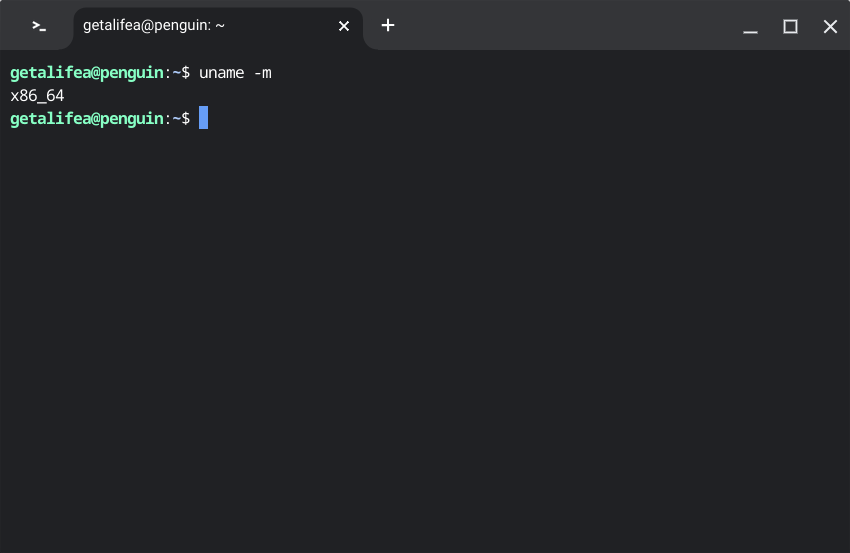
If your Chromebook has an ARM architecture, you will see arm32 or arm64. If it's x64, the Linux terminal in your Chromebook will output x86_64. In this case, you should download the x64 .deb installer.
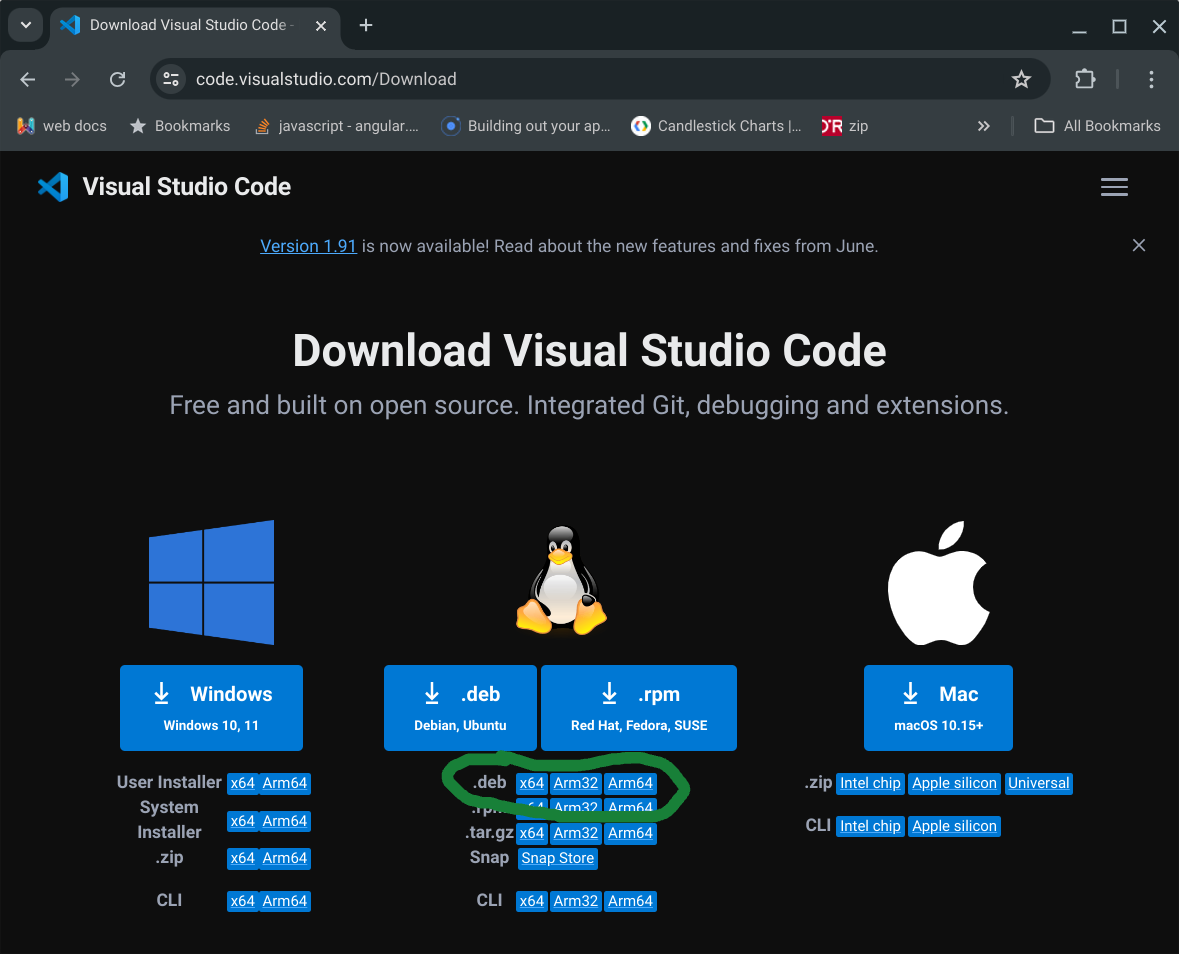
Visit code.visualstudio.com/download and click the appropriate .deb button to download the Visual Studio Code installer.
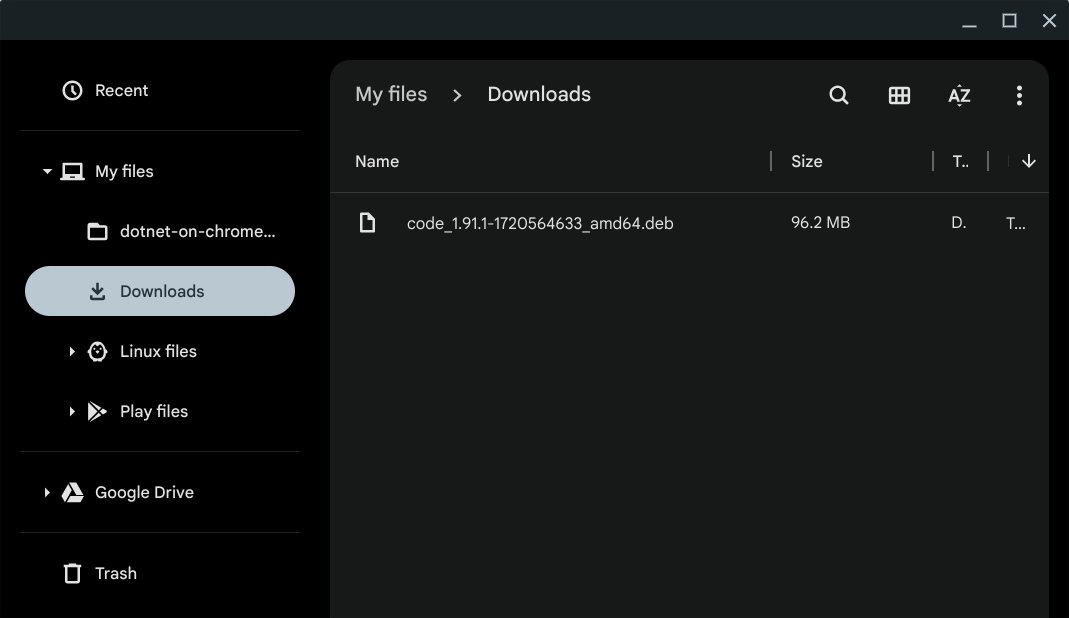
After downloading, install Visual Studio Code by navigating to the Downloads folder on your Chromebook and double-clicking the .deb installer.
After double-clicking the .deb installer, you should see the following screen:
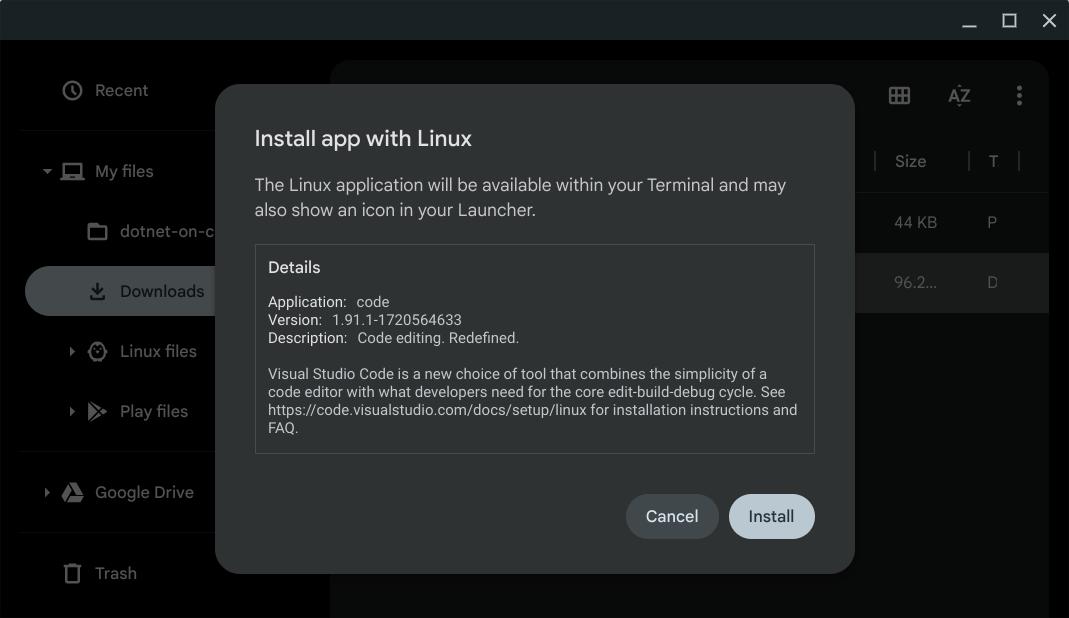
Due to security concerns applications on Chromebook can no longer be installed by double clicking .deb files.
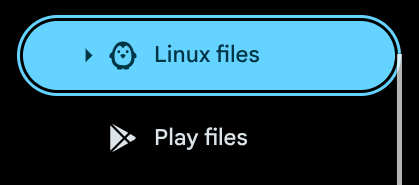
The .deb installation file requires to be copied to "Linux files" container. Then installed using sudo Apt install command. You can cut and paste the .deb files using the files app on Chromebook. Then open terminal to run sudo install APT command.
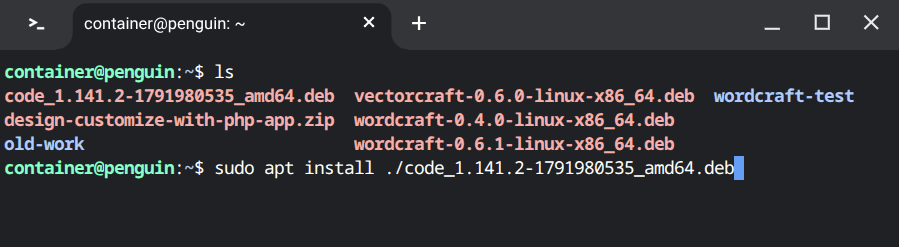
sudo apt install ./code_1.141.2-1791980535_amd64.deb
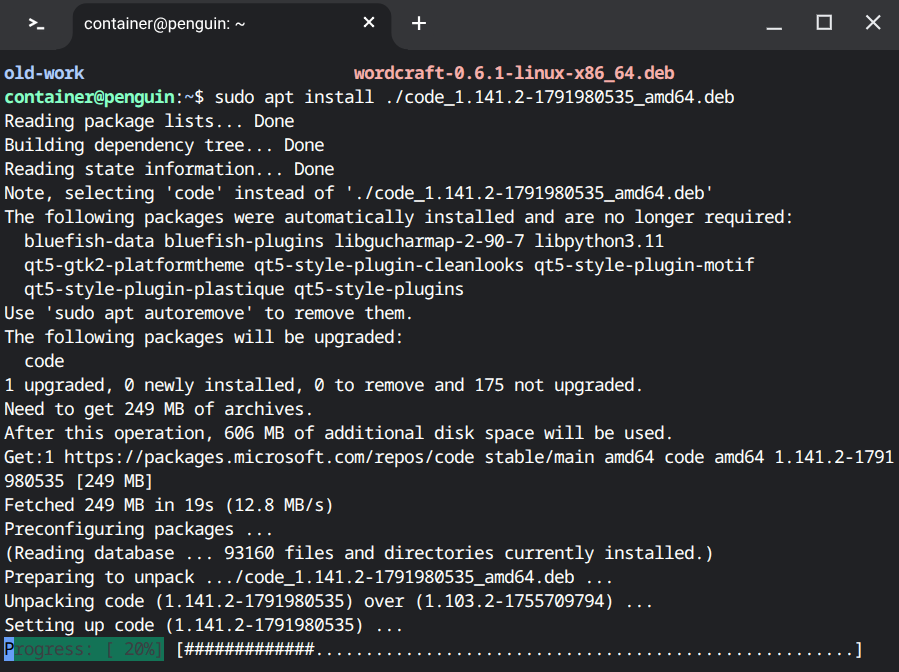
Congratulations, you have installed the best code editor on your Chromebook.